Finding the assistant
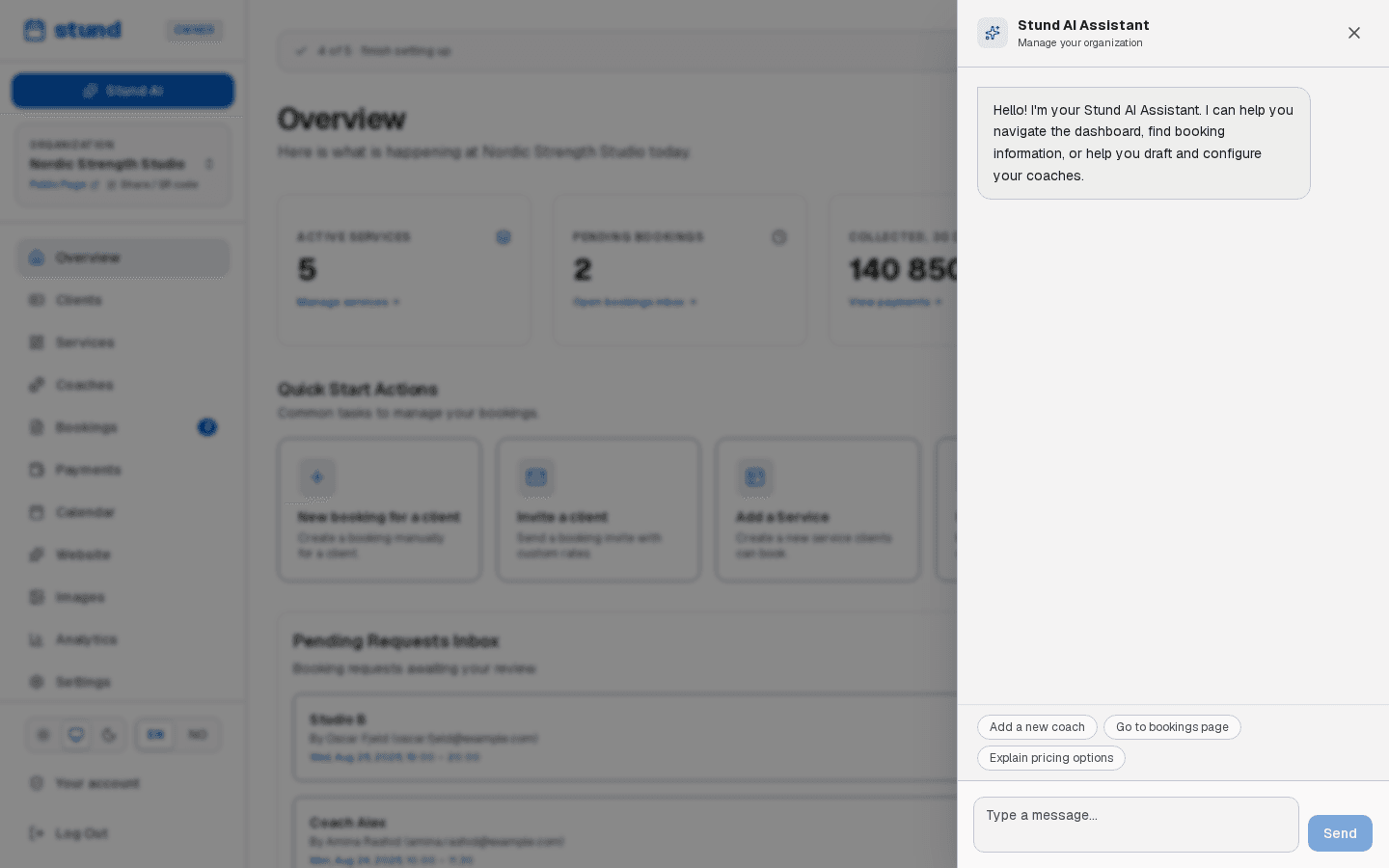
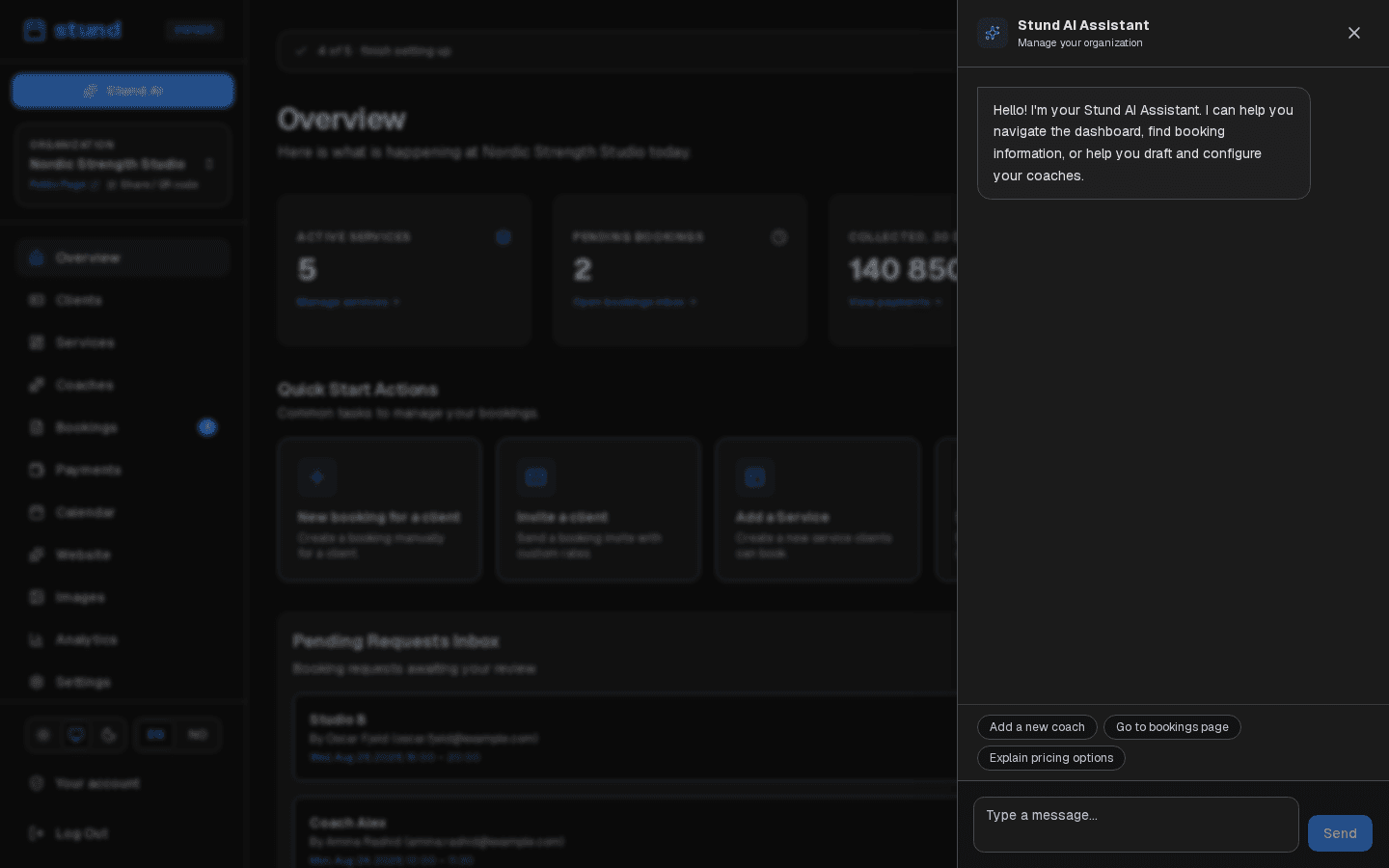
Look for the Stund AI button with the sparkles icon at the top of the sidebar (on your phone it's in the top bar, next to the menu). Click it to open the AI Assistant. You can close it anytime by clicking the X.
Stund AI vs. Website AI
Stund has two separate AI helpers, and it's worth knowing which is which:
- Stund AI — the one covered on this page — sees your whole dashboard: bookings, clients, coaches, availability, settings. Ask it about anything account-wide. When it wants to change something, it shows you a confirmation screen first and only acts once you confirm.
- Website AI lives at the top of the website designer and only knows that one page's draft — never your bookings, clients or settings. It writes wording suggestions for individual fields, or whole-page suggestions from a plain-language request, for you to review before anything is applied. See Your booking page, embed and design for how it works.
If you're working on your booking page's text, look or sections, use Website AI there. For everything else in your business, come back here to Stund AI.
What you can ask it to do
The AI assistant can help you with many tasks across your Stund dashboard:
Navigation & Information
Ask the assistant to take you to any page — for example, "Go to bookings" or "Show me the payments page." It can also answer general questions about how Stund works, your settings, or your coaches and upcoming sessions.
Creating & editing coaches
Describe what you offer in plain language, like "I run 1-on-1 strength sessions with a 30-minute booking interval, and they cost 600 NOK per hour." The assistant will draft a new coach with those details. You'll then review and complete the setup in the coach editor. You can also ask it to edit fields in a coach you're currently editing — it will suggest changes to pricing, duration rules, or other settings.
Setting availability & closures
Tell the assistant when you're going on vacation or not taking clients: "I'm taking Friday afternoon off" or "Vacation next week." It will register those dates as unavailable. You can also ask it to set your regular weekly hours for specific weekdays.
Managing bookings & clients
The assistant can help you manage booking requests. Ask it to accept, decline, or cancel specific bookings.
When conflicts arise in recurring bookings — say a client wants the same slot every Tuesday but two weeks are taken — the assistant can suggest alternative time slots that might work better.
Creating promotions & inviting team
Ask the assistant to create promotional codes (coupons) — handy for a new-client offer — or invite a co-coach or assistant to your dashboard.
Updating business settings
The assistant can help you change your business name, time zone, currency, or other account details — the same ones you can set yourself under Settings → Company information.
How confirmation works
When the assistant suggests an action that changes your data — like creating a coach, accepting a booking, or setting vacation dates — it will show you a confirmation screen before applying the change. You can review what it's about to do and either confirm or cancel. This gives you full control.
You are done
Nothing the assistant proposes is applied until you confirm it, so it is safe to ask it to try something and then decline.
Help on booking requests
If a client wants recurring sessions but some slots are taken, the assistant proposes the closest available alternatives (conflict suggestions).
Client-facing booking chat
By default, the AI booking assistant on your public booking page is turned off. If enabled, your clients can ask questions like "Do you have availability tomorrow?" or describe what they're looking for, and the AI helps them find and book a session. You can turn this on or off anytime in the Website editor under the Booking section settings. When enabled, this AI chat uses the same monthly quota as the dashboard assistant.
AI usage limits per plan
Each plan includes a monthly allowance of AI interactions:
- Free plan: 100 assistant interactions per month
- Growth plan: 2,000 per month, plus 500 overage (2,500 total)
- Scale plan: 10,000 per month, plus 2,000 overage (12,000 total)
The usage counter resets every 30 days. On paid plans, going past your monthly allowance takes you into the overage window; once that is also used up, the assistant pauses until the counter resets. On the Free plan there is no overage, so the assistant pauses as soon as the limit is reached. Upgrading raises the limit immediately.
Good to know
The booking chat your clients use on your public page draws from the same monthly allowance as the dashboard assistant.
Tips
- Be specific: "Create a 90-minute small-group HIIT class" works better than "Create a class."
- The assistant knows your current page, so context-specific requests work well
- If you don't like a suggestion, just say no — it's your choice