Setting coach hours
Availability is set per coach — you configure working hours when creating a new coach, and can adjust them any time from the coach's profile. Open Coaches from the dashboard menu and click on a coach to edit their schedule.
When you create a new coach, default working hours of Monday to Friday, 09:00–17:00 are pre-filled. You can customize these directly in the creation form before saving. Holidays, vacations, and specific closures can be added after the coach is created.
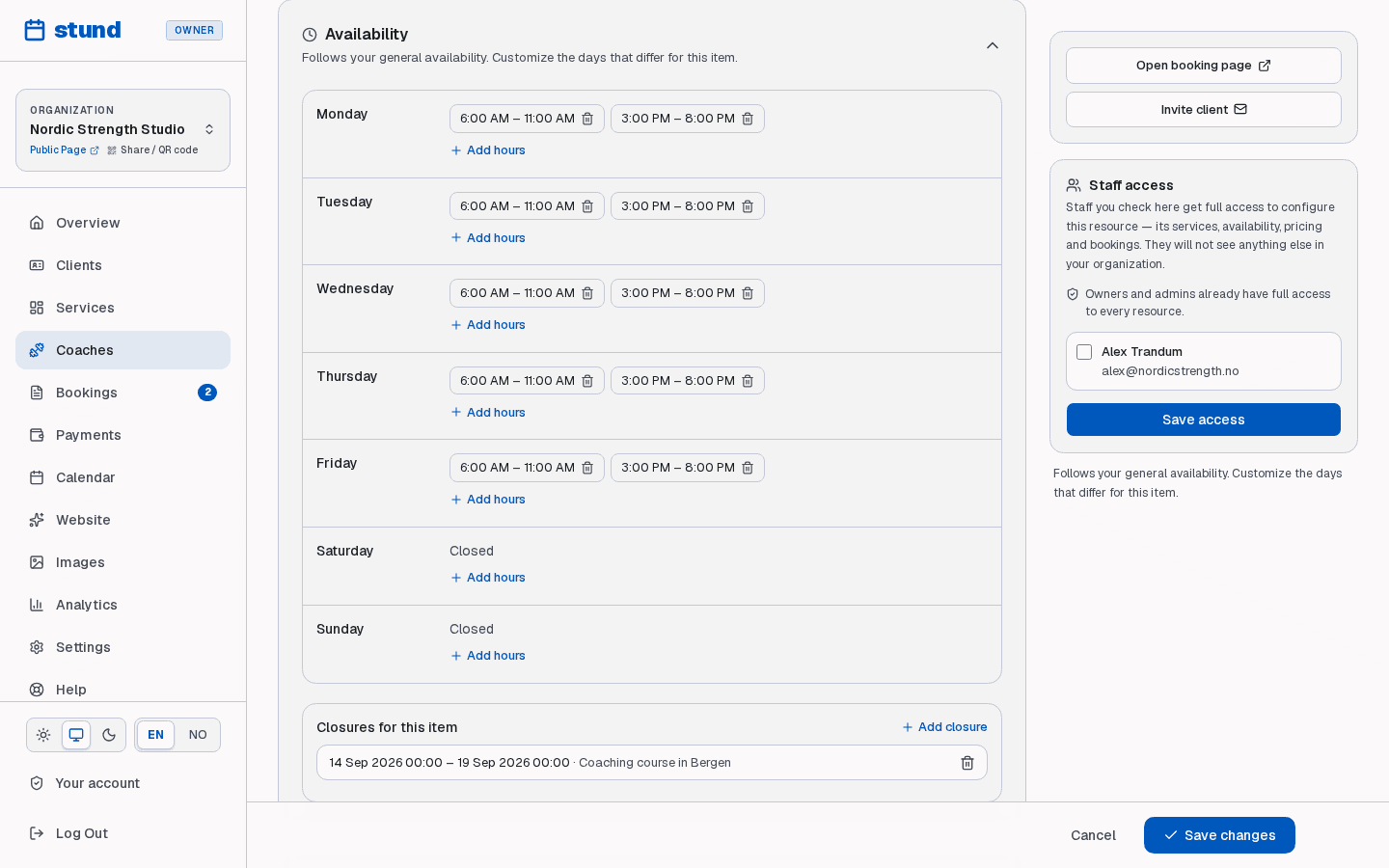
Under Availability, you'll see each weekday from Monday to Sunday:
- Add hours: Click + Add hours to create an available time window (e.g. 09:00–17:00). You can add multiple separate windows in a single day (e.g. morning and evening slots).
- Remove hours: Click the trash icon on a time pill to remove that window. Days with no windows are marked as Closed.
How availability rules work
Your hours are broken into weekly rules — you define start and end times for each day of the week. Stund uses your business's timezone, so all the slots clients see follow your local time, converted to their timezone seamlessly when booking.
A session can only start inside an active window on that coach's schedule, and never inside a closure.
Blocking time off: vacations and closures
Under the weekly schedule on each coach's profile, use Closures for this coach to block off specific days or periods:
- Click + Add closure.
- Choose a start date/time and end date/time (e.g., a holiday week or a single afternoon off).
- Add an optional internal reason (e.g. "Vacation", "Seminar").
Clients cannot book during a closure — those slots are automatically removed from the public booking page.
Heads up
Blocking time does not cancel bookings that are already confirmed in that window. Check Bookings to reschedule or manage existing appointments.
Buffers and booking constraints
Fine-tune how slots are generated for your clients with settings on each service:
Minimum notice — require clients to book in advance (e.g., 24 hours notice) to prevent last-minute surprises.
Maximum advance booking — limit how far ahead clients can book (e.g., up to 3 months out).
Booking interval — the gap between available slot start times (e.g. every 30 or 60 minutes).
Buffers before/after — preparation and rest time between appointments so back-to-back bookings never overlap.
Tip
These settings live on each service. Open a service under Services to adjust buffers and notice rules.
Timezone awareness
All availability settings are stored and calculated in your business's time zone, chosen under Settings → Company information. Clients see available slots in their own local time when viewing your booking page.