Coach vs. service
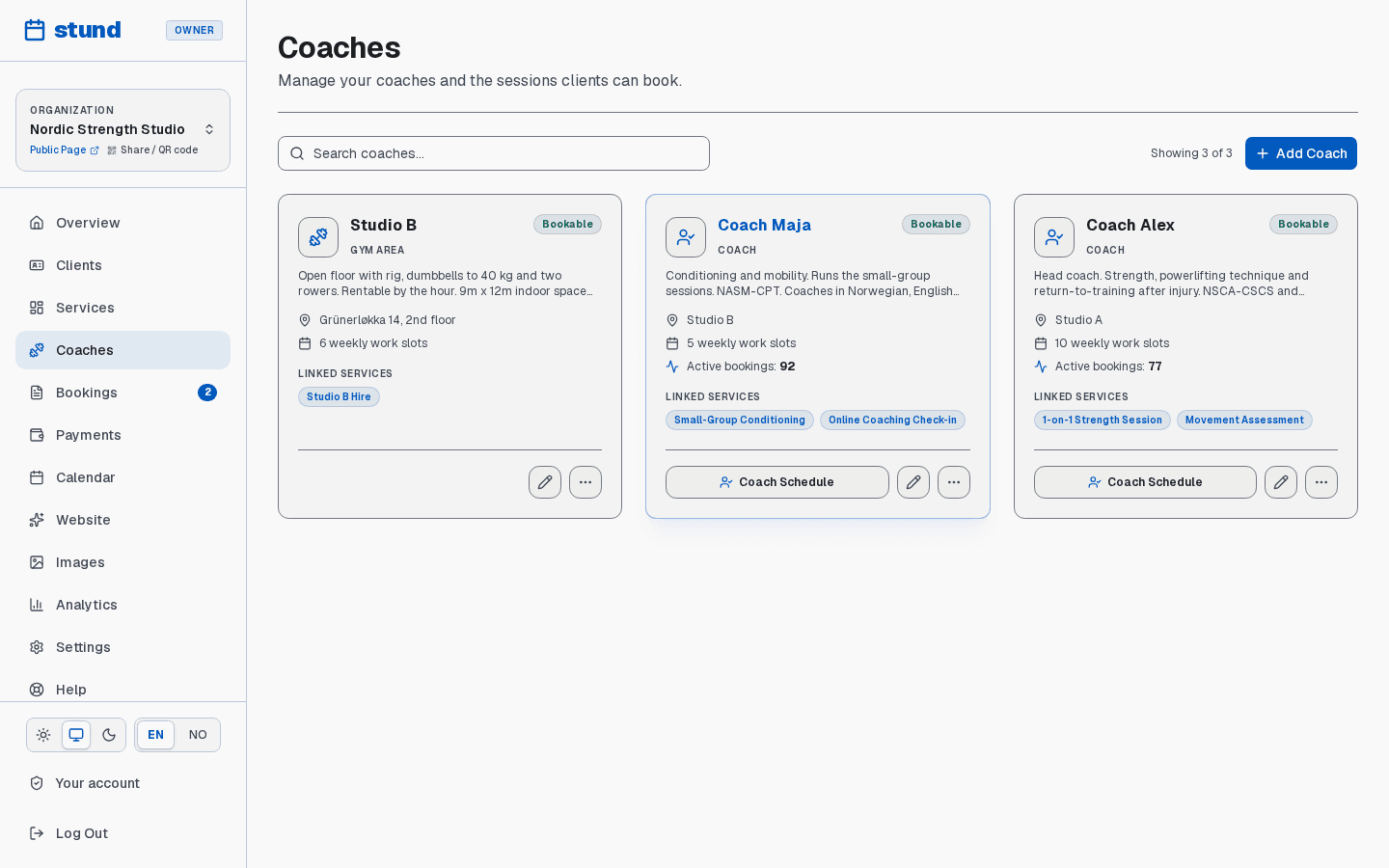
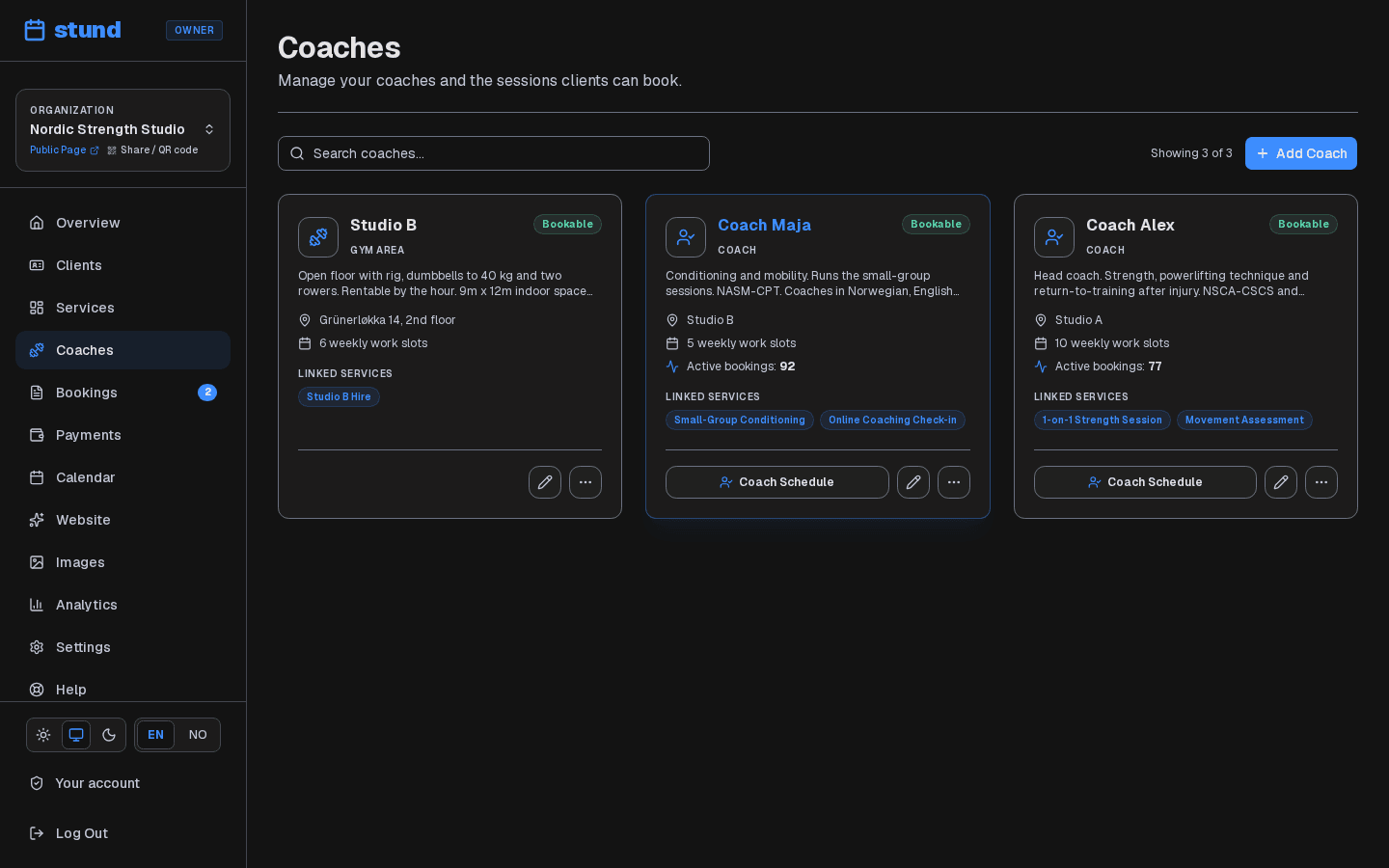
A coach is who your sessions run on. For a solo business that's simply you — but if you have a team, each trainer is their own coach, with their own hours and clients.
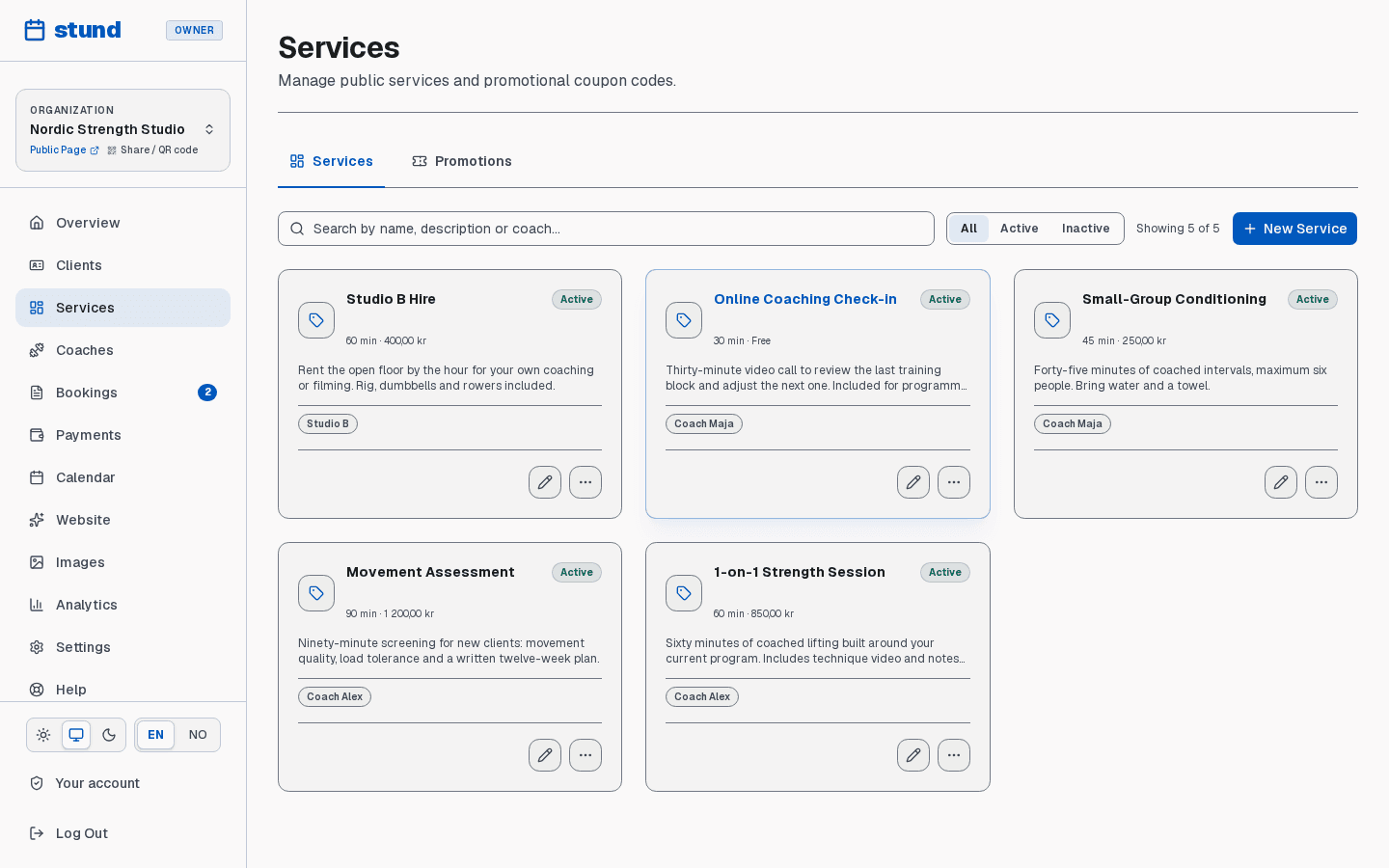
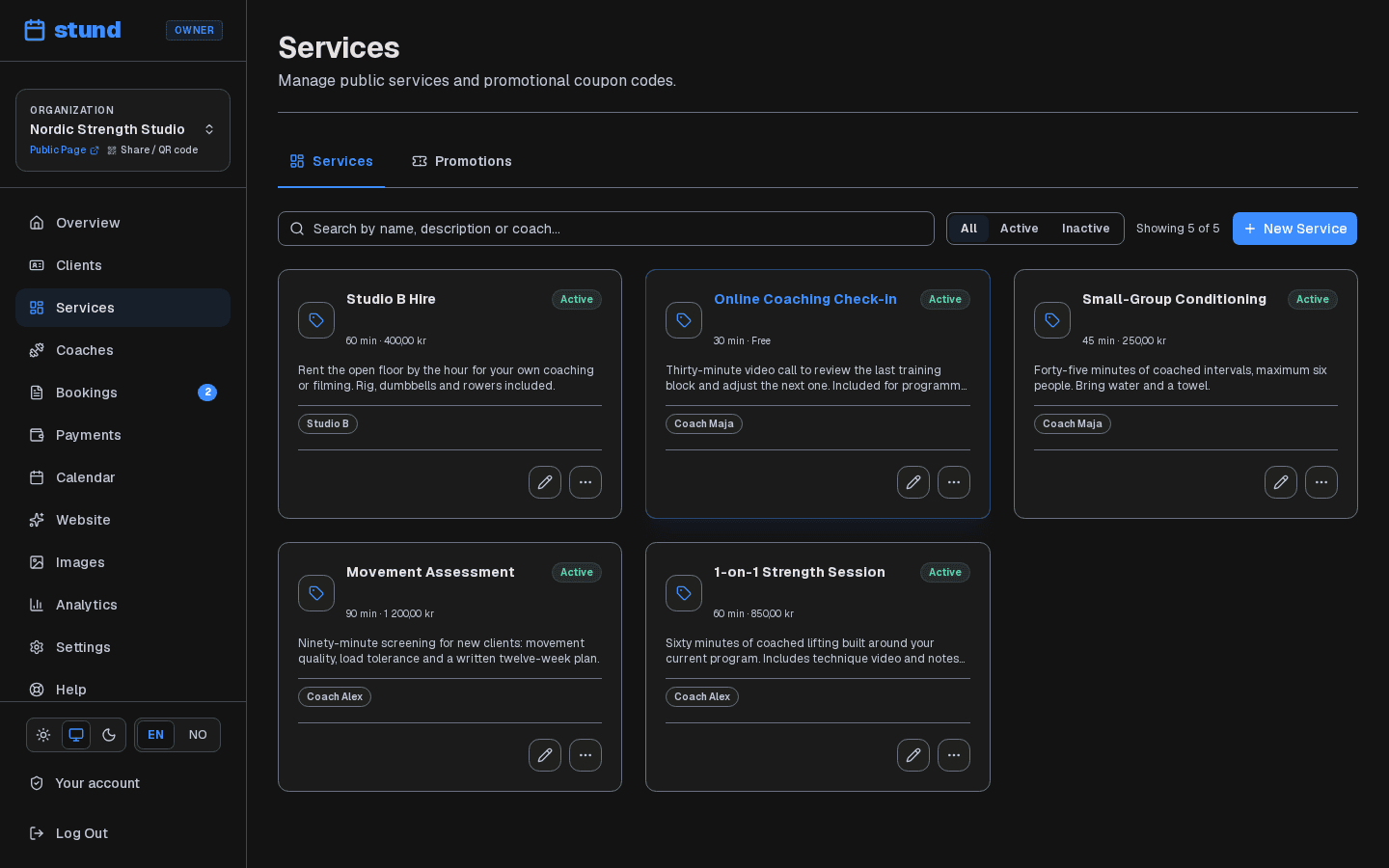
A service is a bookable offering built on a coach — the actual thing your clients reserve, with its own duration and price. Most coaches have at least one service, and many have more (e.g., you might offer three services: "30-min session," "60-min session," "nutrition consultation"). You can create multiple services right during onboarding with + Add service on the review screen, or add more at any time from Services.
Coaches and services are linked: you create the coach, then define one or more services for how they can be booked. Clients always book a service — a coach without an active service can't be booked, and their booking page tells you so until you add one.
Good to know
Most of the time you only need Services. Open Coaches when you want to add a photo, set a coach's own hours, or change advanced settings on the person underneath.
Assigning multiple coaches to a service
If several coaches on your team offer the same service (for example, multiple personal trainers who all conduct "60-min PT sessions" or "Initial consultations"), you can link all of them to that one service:
- Go to Services and open the service you want to edit.
- Scroll to the Linked coaches (or Linked resources) section at the bottom.
- Check every coach who can deliver this service and save your changes.
What your clients see
- Storefront catalog: The public booking page displays a single consolidated service card indicating how many coaches are available (e.g. "3 coaches available").
- Interactive Coach Selector: When a client clicks the service, they see a card-based coach picker with each coach's photo, name, and location. They can select their preferred coach, view that coach's live schedule, or easily switch coaches without losing their selected service.
- Fair distribution: When clients click from the main service list, the initial coach selection is fairly rotated so no single coach is always preselected.
Booking shapes
Each service has a booking shape that determines the experience your clients see:
- Duration booking: clients pick a start time and a length — they answer "when?" and "how long?". The natural fit for 1-on-1 coaching, where sessions can run 30, 45, or 60 minutes.
- Time-slot booking: clients pick from a calendar of fixed time blocks — a good fit for sessions with fixed start times. You set the slot length (30 min, 60 min, etc.).
- Service menu: clients pick from a menu of services, each with its own duration and price, then pick a time — perfect for a coaching menu like "30-min check-in," "60-min session," "program design consultation."
How customers pay
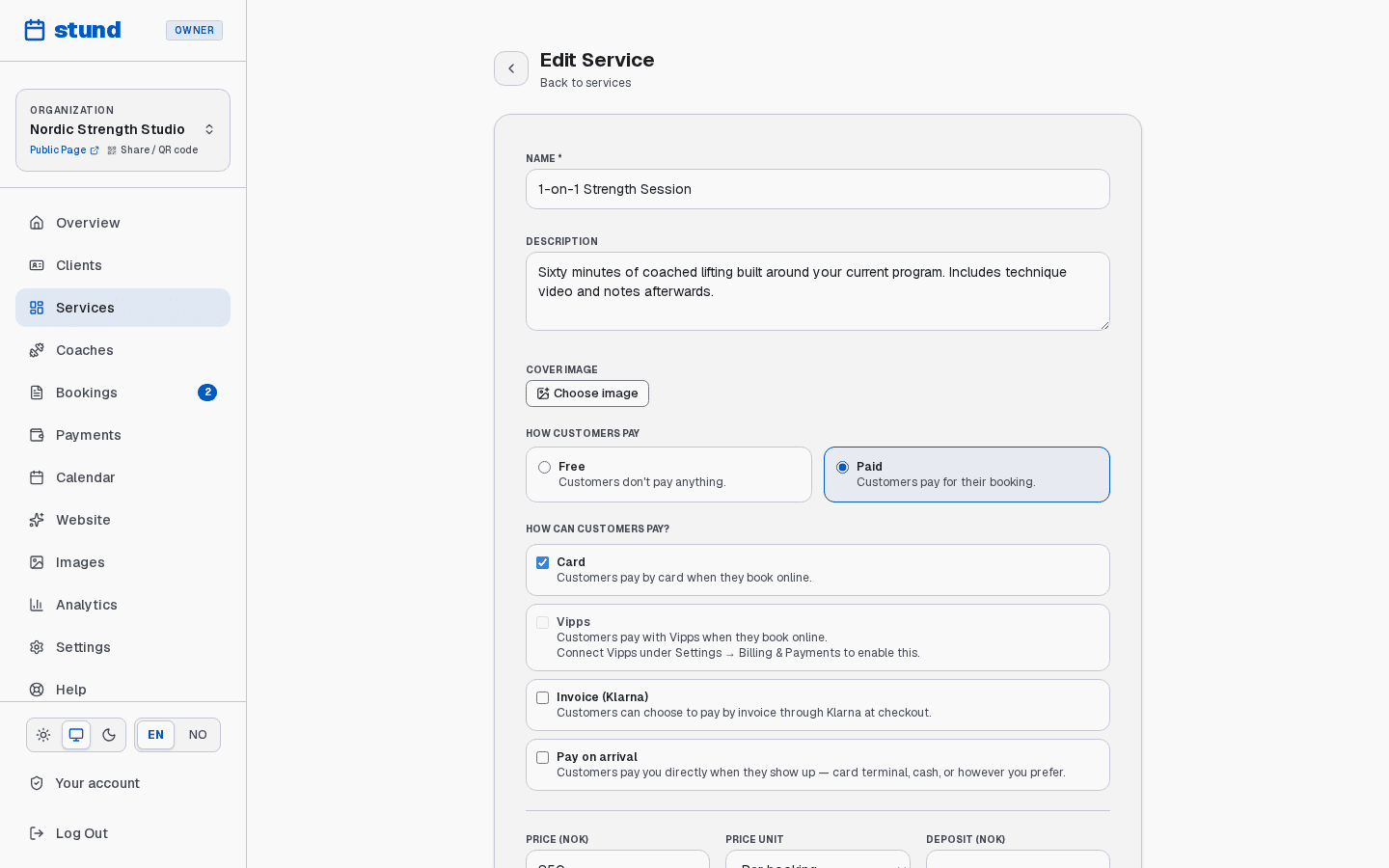
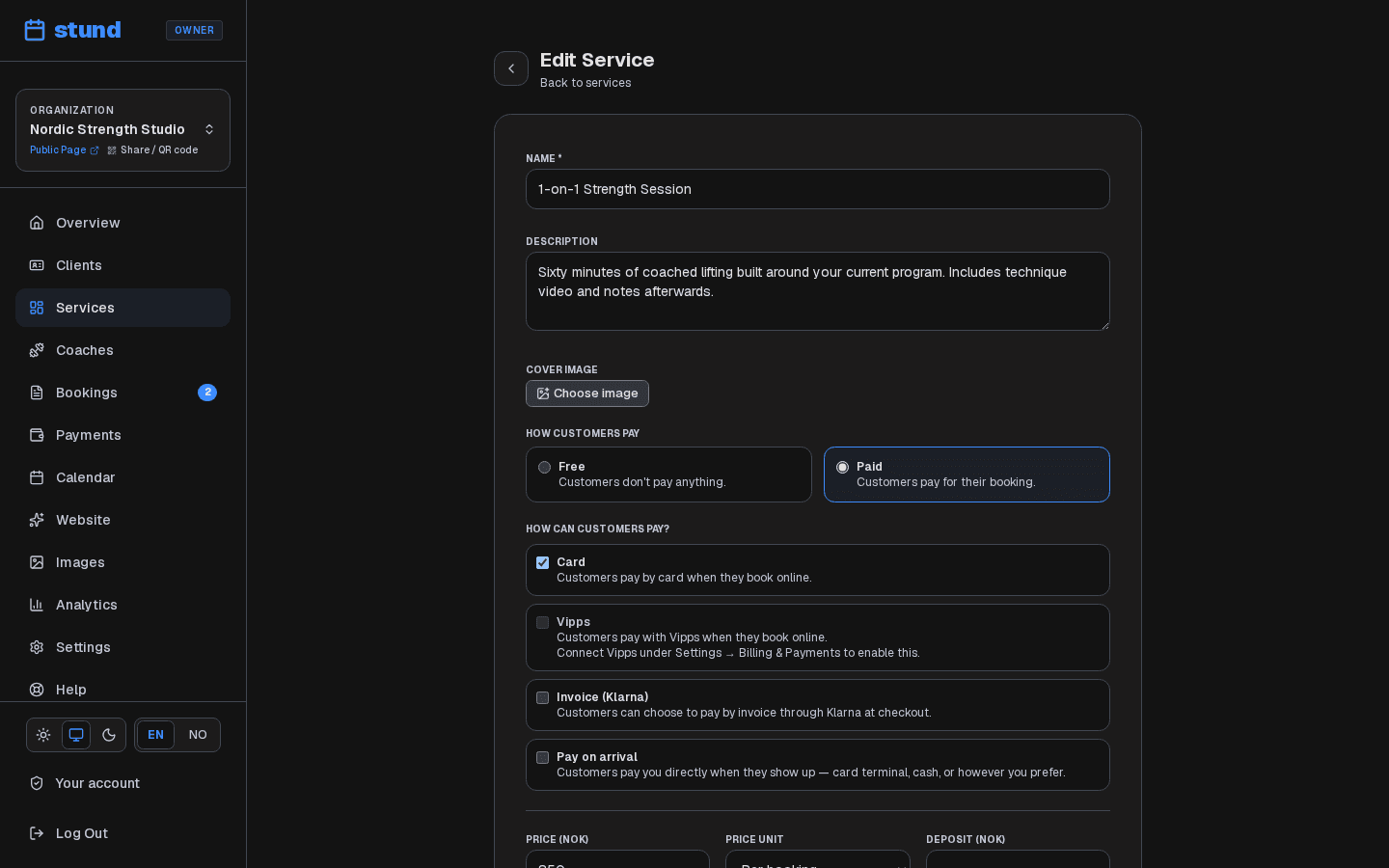
Every service is either Free or Paid:
- Free — no charge. Booking is instant (if auto-approved).
- Paid — you turn on one or more payment methods, and clients pay using any of them.
For a Paid service, choose which methods clients can use — you can turn on more than one at once:
- Card — clients pay by card online when they book (needs Mollie connected).
- Vipps — clients pay with Vipps online when they book (needs Mollie connected — Vipps is a payment method inside Mollie, not a separate connection).
- Invoice (Klarna) — clients choose invoice through Klarna at checkout. Klarna also runs through Mollie, so it needs the same connection.
- Pay on arrival — clients pay you directly in person; no online payment happens.
You can combine methods freely. Turn on both Card and Pay on arrival, for example, and clients get to choose between paying online now or paying you when they show up. If Pay on arrival is the only method turned on, the service behaves like the old "pay on site" option: the booking confirms (or waits for your approval) with no online payment, and you collect payment in person.
You can charge per booking (flat fee per session), per hour (scales with duration), or per person (scales with group size).
Good to know
A method whose provider isn't connected yet shows as disabled, with a hint pointing to Settings → Billing & Payments. Turn on Pay on arrival so a paid service still works before you connect anything.
Approval modes
When a client books, what happens next?
- Manual approval — the booking lands in your Bookings inbox as pending. You review it, then click Approve or Deny. The client waits for your decision.
- Automatic approval — the booking confirms instantly if availability allows. The client gets an immediate confirmation.
You choose one approval mode per service.
Booking rules
Every service has configurable rules. Key ones include:
- Duration limits — shortest and longest booking allowed.
- Booking interval — slot increments (30 min, 60 min, etc.).
- Minimum notice — how far in advance clients must book.
- Maximum advance — farthest in future clients can book.
- Buffer time — time blocked before/after each booking so you can reset between sessions.
- Cancellation window — hours before start when clients can cancel for a refund.
- Recurring — whether clients can book the same slot weekly.
Tip
Buffer time is the rule coaches most often forget. Set 10–15 minutes if you need to reset the floor or write notes between clients.
Where sessions take place
Each service says where a session happens, under Where sessions take place in the service editor:
- In person — at the coach's location. The address you set on each coach is what clients see in their confirmation, reminders and calendar file.
- Online (video) — clients get a join link in their confirmation email, in every reminder (email and SMS), on their confirmation page and in the booker portal, and in the calendar file they download. Paste your standing room link (Zoom personal room, Microsoft Teams, Whereby, a permanent Google Meet link) in Meeting link. Leave it empty and Stund creates a Google Meet link for each booking instead — this needs the coach to have Google Calendar connected, since the link is created together with the calendar event.
- At the client's location — you travel to the client. Clients see "At your location"; add a booking question if you need their address.
For online and client-location sessions you can add short instructions for clients ("camera on, have a mat and water ready"). They go out with the link.
Need a different room for one particular session? Open the booking under Bookings, and under Where set a join link for this booking. It replaces the service's link (or a generated Meet link) for that booking only. Saving does not email the client — press Resend confirmation when you want them to have the new link.
Tip
The join link is only shown once a booking is confirmed. A pending request never carries a link, so clients never end up in a room for a session you declined.
Booking data
Clients provide information at checkout. You can ask standard questions or add custom questionnaire fields (text boxes, multiple choice, checkboxes) — handy for training goals, injuries, or experience level. You can also require acceptance of terms (liability waiver, health declaration, studio rules) as PDF or text.
Photos and details
Upload photos to build trust — the first becomes your cover image, so a clear photo of the coach works well. Add a location and a description, and set max attendees if several people share a slot. Anything else you want clients to know — the level a session suits, your qualifications, what to bring — belongs in the description, which is shown on the booking page.
Need inspiration writing a coaching bio? Click Suggest beside the description field to let AI draft a concise, tailored introduction based on the coach's name, discipline, and business profile. Review and tweak the suggestion before clicking Use this. For bilingual booking pages, suggesting a description prepares both your primary bio and its secondary language translation in one go.
Offering a coach or service in two languages
If your booking page has a second language (set up in the Website editor — see Designing and publishing your booking page), every service editor grows a second box beside each piece of text a client reads: name, description, pay-in-person instructions, terms, and questionnaire questions and their dropdown choices. A Translate button above each second box asks AI to fill just that one field; Fill in the missing [language] at the top does every empty one in a single pass, and you can undo the whole batch with one click if you don't like the result. Read AI translations through before saving, especially prices, qualifications, or your own name. A single-language booking page never shows any of this — the editor looks exactly as it always has.
These boxes count toward when the second language goes live: your page only starts offering it to visitors once every text — on the website, and on every active service and listed coach — has a version in it, so an empty box here is one of the things holding it back. Until then, an empty box is harmless: anyone previewing that language simply sees your original text, so a half-finished translation never breaks the page.
A coach's own profile works exactly the same way: the Coaches editor grows a matching second box for your name, bio, and location, with the same Translate button and Fill in the missing [language] action. A coach's name is often a person's own name, and a location is often a short label like "Studio A" — when those don't change between languages, fill in the same wording (the Fill in the missing [language] action does exactly that for names it shouldn't translate). Translations show up everywhere clients see the coach: the coach directory, the booking page, and confirmation emails and calendar invites the client themselves receives.
Status
A service can be active or inactive — only active ones appear publicly. You can also pause a coach without archiving them — useful while they're on holiday or not taking new clients — and their services drop off the booking page until you switch them back on.
A coach's schedule at a glance
Each coach gets a Coach Schedule button. It opens a panel summarising that one person: how many service options are priced for them, how many weekly working slots they have, the actual days and times as chips, and the appointments assigned to them with each client's name, email, time and status.
It's a read-only summary — a way to answer "what does Tuesday look like for Maria?" without leaving the page. To change her hours or block time off, edit her profile under Coaches; both are reflected here immediately.
Getting started with your first service
Most coaches work entirely in the Services page. You can:
- Click Add a Service and manually fill in the form, or
- Describe what you offer in plain language and let the AI assistant auto-populate most fields.
Either way, you start by naming the coach and choosing the booking shape (duration, time slot, or service menu). Stund then sets smart defaults for pricing, rules, approval mode, and standard coach availability (Monday–Friday 09:00–17:00) — you adjust them to fit your business.