Payment options
Each service is either Free or Paid. On a Paid service, you choose which payment methods clients can use — and you can turn on more than one at once:
- Card — clients pay by card online at booking time. Needs Mollie connected.
- Vipps — clients pay with Vipps at booking time. Needs Mollie connected — Vipps is one of the payment methods inside Mollie, not a separate provider to set up.
- Invoice (Klarna) — clients choose invoice through Klarna at checkout. Klarna is also a Mollie payment method, so it needs the same Mollie connection.
- Pay on arrival — clients pay you directly in person; no online payment happens.
Turn on any combination that fits your business — card plus pay on arrival, say, lets clients choose between paying online now or paying you when they show up. If Pay on arrival is the only method turned on, the service works like the old "offline" payment option: the booking confirms (or waits for approval) with no online payment, and you collect payment in person. If any online method is turned on, clients booking that service are taken to a payment page where they pick among the enabled options.
Set this up in the service editor. Any method that isn't available yet shows as disabled there, with a hint pointing to Settings → Payments — connect Mollie to turn it on.
Connecting Mollie
Mollie is Stund's one payment connection. Card, Vipps and Klarna are all payment methods inside it, so you connect it once and then simply choose which methods to offer on each service.
- Go to Settings → Payments
- Click Connect Mollie
- You'll be guided through Mollie's own verification (business info, bank details)
- Once verified, turn on card, Vipps and/or Klarna on any paid service
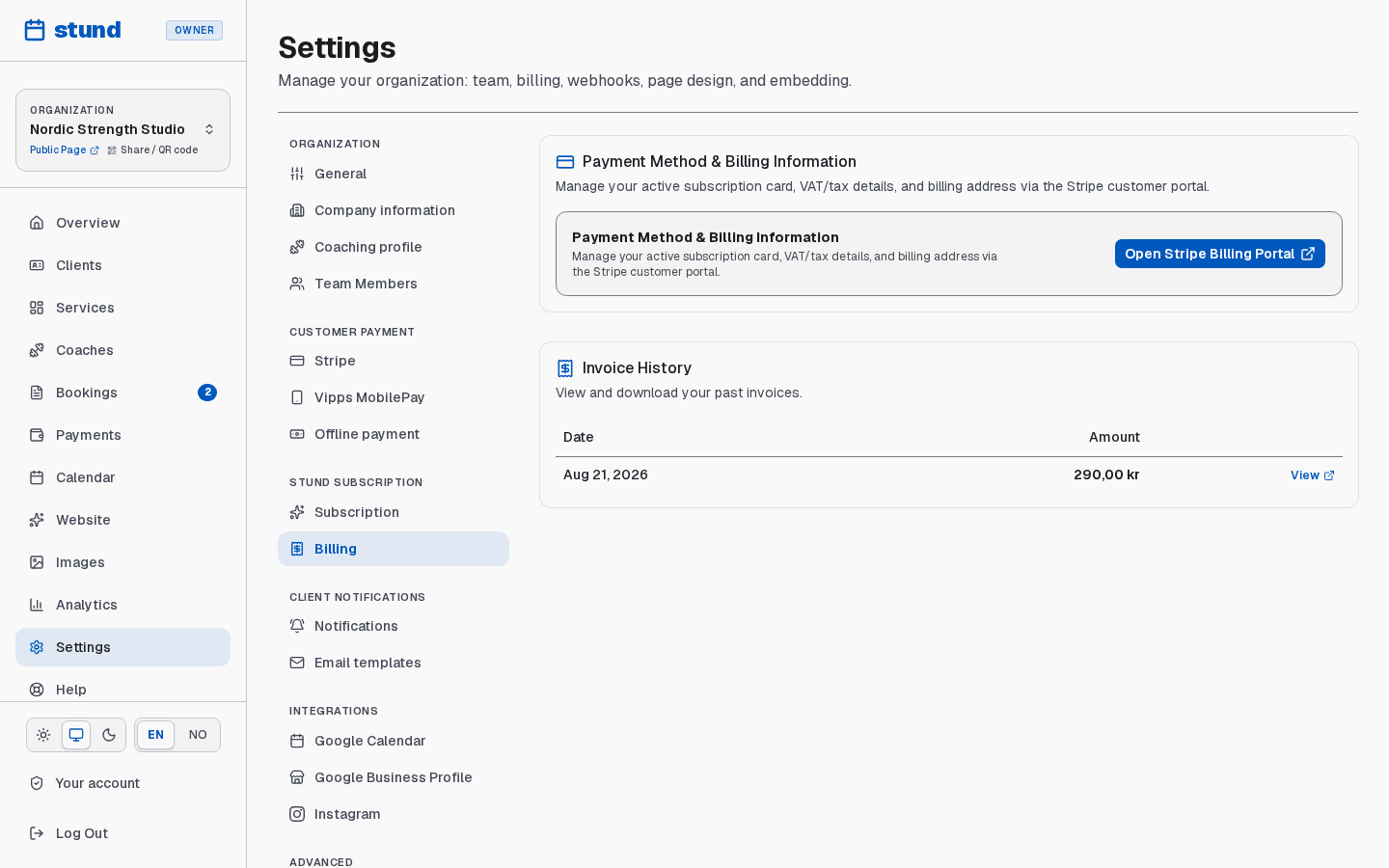
When a booking is paid, Stund's platform fee — a flat 0.5% of the payment — is deducted automatically the moment the charge happens, whatever method the client used, and the rest lands directly in your own Mollie account within 1–2 business days. There's no separate transfer step and nothing added to a later invoice.
Which of card, Vipps and Klarna you can actually turn on depends on your Mollie account and country, so don't be surprised if one of them isn't available to you yet — Settings → Payments always shows which methods are ready to use.
What clients see at checkout
When a client books an Online session, they're taken to a secure checkout page where they pay with whichever methods you've turned on — card, Vipps or Klarna. Once payment succeeds, the booking confirms and they receive a confirmation email.
If payment fails, the booking stays pending and the slot remains reserved for ~45 minutes while they can retry. After that, the booking expires and releases the slot so others can book it.
A payment is authorized at checkout and captured in full when the booking is settled, a moment or two later — Mollie only takes the money once the booking is confirmed to still stand. This matters in one case: if the slot has already been released by then — it expired, or you cancelled it — the authorization is simply released and the client is never charged at all, rather than being charged and refunded. Their bank releases the held amount within a few days. The booking's history calls this Authorization released, and there is nothing for you to do about it.
Cancellations and refunds
When you cancel a booking (or a client requests a refund within the cancellation window), the payment is reversed to the client's original payment method. The platform fee is never returned with it: Mollie's fee on a payment can't be reversed once the payment settles, so refunding the client afterwards doesn't undo it, whatever method they paid with.
If a client cancels too close to their session, your cancellation policy applies and they may not receive a full refund. See the coach editor for cancellation-window and refund-percentage settings.
Good to know
The platform fee is never returned on a refund, however it happens — a cancellation, a manual refund, or one you make in your Mollie dashboard. Only the client's own payment is reversed.
Refunding without cancelling
Sometimes you want to return money while the booking stands — a goodwill gesture, a session that ran short, or a price you agreed to adjust afterwards. Open the booking in Bookings and choose Refund.
- Pick Full refund, or Partial and enter a percentage.
- The dialog shows exactly what will be returned before you confirm.
- Add a reason if you want one — it is recorded on the booking's history.
The booking stays on your calendar either way. Use this too if a refund failed at your payment provider and you were emailed about it: the same button retries it.
Good to know
A refundable deposit is always returned in full, whatever percentage you choose. Deposits are the client's money held in escrow, not part of the session price.
Recording a payment you took in person — and undoing it
When a client pays you outside Stund — cash, a bank transfer, or your own card machine — open the booking and choose Mark as paid. The booking counts as settled and shows in your revenue, but no money moves through Stund and no platform fee applies. Use this only for money you have actually collected.
If you recorded that by mistake, or the arrangement fell through before the client paid, open the booking and choose Set as unpaid. It clears the recorded payment and puts the booking back to awaiting payment, ready to be marked paid again — or paid online — once things are sorted.
Good to know
Set as unpaid only shows on a booking you settled by hand: there is no money to send back. A booking paid online through Mollie shows Refund instead, because that moves real money at the provider. So: Refund for online payments, Set as unpaid for an offline one you recorded in error.
Refunds and chargebacks handled in Mollie
If you refund a payment straight from your Mollie dashboard instead of using the Refund button here, that's fine — we pick it up automatically. The booking is marked refunded and the amount shows in Payments just as it would for an in-app refund, so your totals stay correct either way. The platform fee is kept, exactly as it is for a refund made here.
For a prepaid package refunded this way, we record the money but keep the package active — the client keeps any unused credits and can still book with them. To take the credits back too, cancel the package with its Refund button here; it revokes the remaining credits and won't charge a second refund for money you already returned.
If a client disputes a card payment (a chargeback), Mollie pulls the disputed amount back right away and the booking is marked refunded immediately on your side — there is no pending phase where the money waits on the outcome. Chargeback liability sits with you, not with Stund: contest it with evidence in your own Mollie dashboard, which is the only place to do that. If the bank later rules in your favor, the payment stands again and the booking's history shows the reversal; either way, the platform fee is not returned.
Returning a deposit, or keeping part of it
Where a booking took a refundable deposit, the booking's Return Deposit button releases it. If something was damaged or lost, enter an amount to keep and the rest goes back to the client. The dialog shows the amount they will receive, and both the amount kept and your reason are recorded on the booking's history so you can point to it later.
Unpaid bookings
Bookings set to Online require payment before they confirm. If a client starts checkout but leaves without paying:
- The slot stays reserved for ~45 minutes to give them time to retry
- If they don't pay within that window, the booking expires and releases the slot
- No money is ever taken; no notification is sent to you
This prevents abandoned checkouts from blocking your calendar.
Payment history
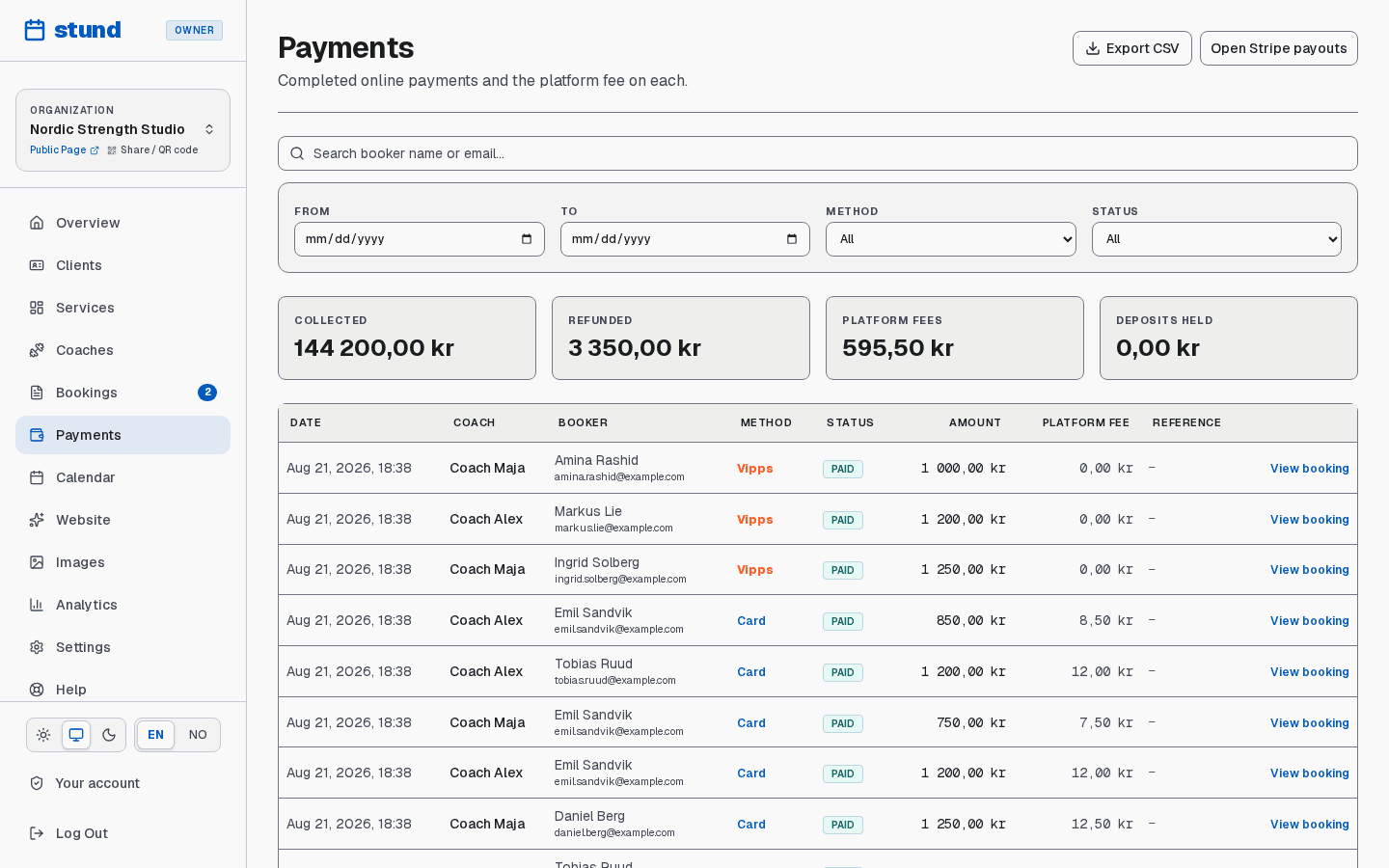
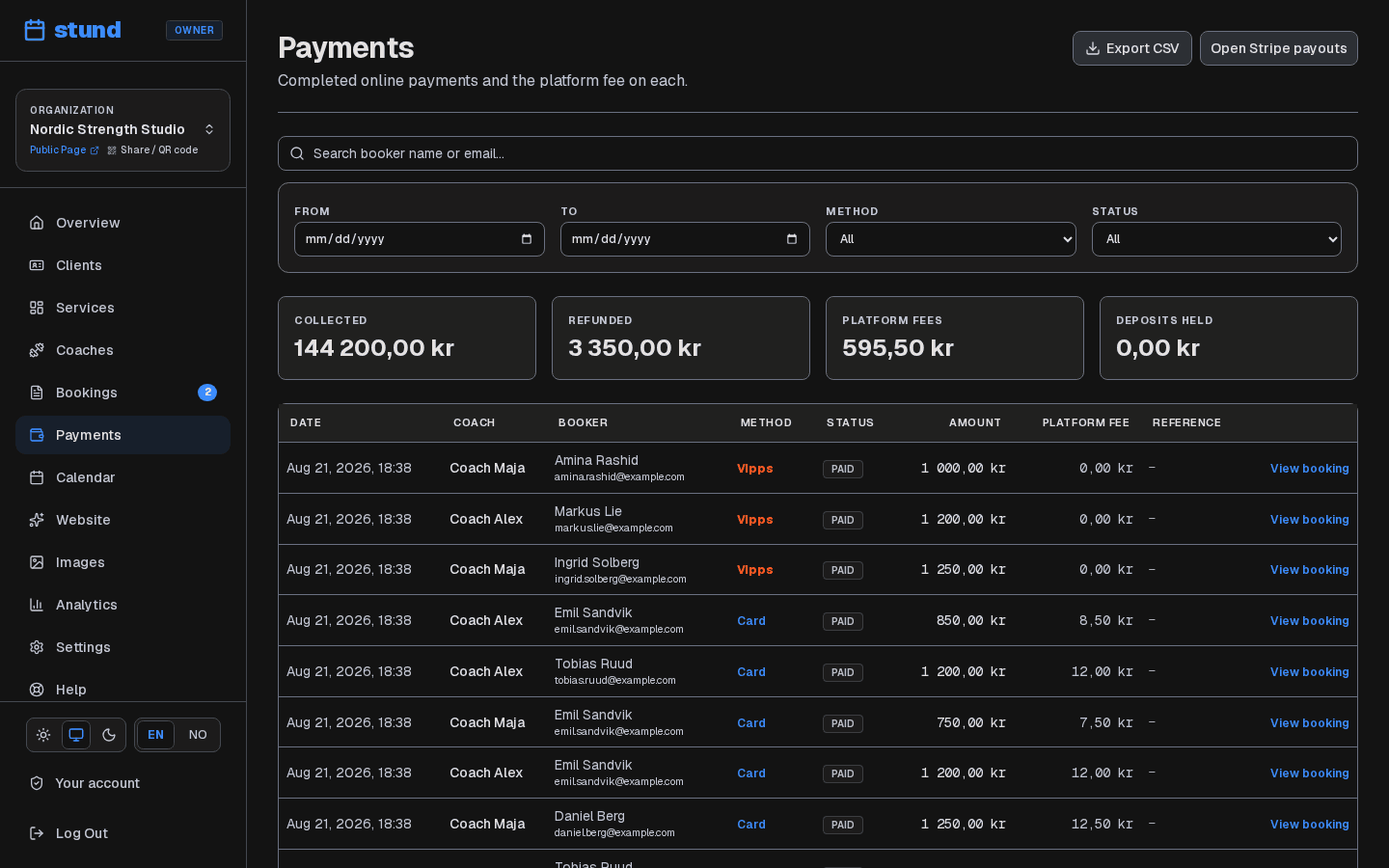
View all transactions (paid bookings, refunds, failed attempts) in Payments. You'll see:
- Booking details and the client's name
- Payment status (paid, refunded, failed, pending)
- Amount paid after platform fees
- Payment method (card, Vipps, Klarna, or manually recorded)
- Settlement date
Finding one payment, or one month
The filter bar above the table narrows what you see:
- Search matches the client's name or email address.
- From and To bound the settlement date, in your organization's timezone. Both ends are included, so "to 31 March" covers all of the 31st.
- Method picks out card, Vipps, Klarna or manually recorded payments.
- Status separates fully paid, partially refunded and fully refunded payments. "Partially refunded" means money has gone back but not all of it.
The four figures at the top follow your filters. With nothing filtered they cover every payment you have ever taken; set a date range and they cover that range instead — which is what you want when you are reconciling a month. A line under the cards reminds you when a filter is narrowing them.
Filters live in the page address, so you can bookmark "March, card payments only" or send the link to your accountant. Clear filters puts everything back.
View booking at the end of each row opens that exact booking, which is where refunds and deposit returns are handled.
Use Older payments at the bottom to walk back through the history a page at a time; your filters are carried along.
Good to know
Export CSV always downloads the full history, not the filtered view.
Export CSV downloads the whole payment history: one row per settled payment with the amount, any refund, the platform fee and the provider's reference. That reference is what your accountant or Mollie support will ask for.
For detailed payout history, disputes and transfers, sign in to your own dashboard at my.mollie.com.