Setting base prices
Every coach has a base price, set in the coach editor. Choose a price unit to match how you charge:
- Per booking — one flat rate per session (e.g., a 60-minute PT session)
- Per hour — charged by duration (e.g., extended coaching or studio time)
- Per day — charged per day (e.g., a full-day training camp)
- Per person — charged per attendee (e.g., a group class)
You can also set an optional deposit — an upfront payment before the full booking. The remainder is charged when the booking is confirmed.
Price adjustments (seasonal, weekend, date ranges)
Use pricing rules to adjust prices for specific windows:
- Weekly rules — apply to certain days of the week (e.g., a weekend surcharge)
- Date-range rules — apply to specific calendar periods (e.g., the January rush, summer season)
Each rule sets an adjustment type:
- Percentage — e.g., add 20% during your busiest season
- Fixed amount — e.g., add 100 NOK on weekends
You can create multiple rules with different priorities. The highest-priority rule that matches a booking's start date wins. If no rule applies, the client pays the base price.
Coupons and discount codes
Create reusable coupon codes in Services → Promotions to reward clients — a welcome code for new clients, or a thank-you for referrals:
- Percentage discount — e.g., 10% off (applies to the final price after all adjustments)
- Fixed discount — e.g., 50 NOK off
Set optional limits on each coupon:
- Redemption limit — maximum number of times the coupon can be used
- Expiration date — the coupon stops working after this date
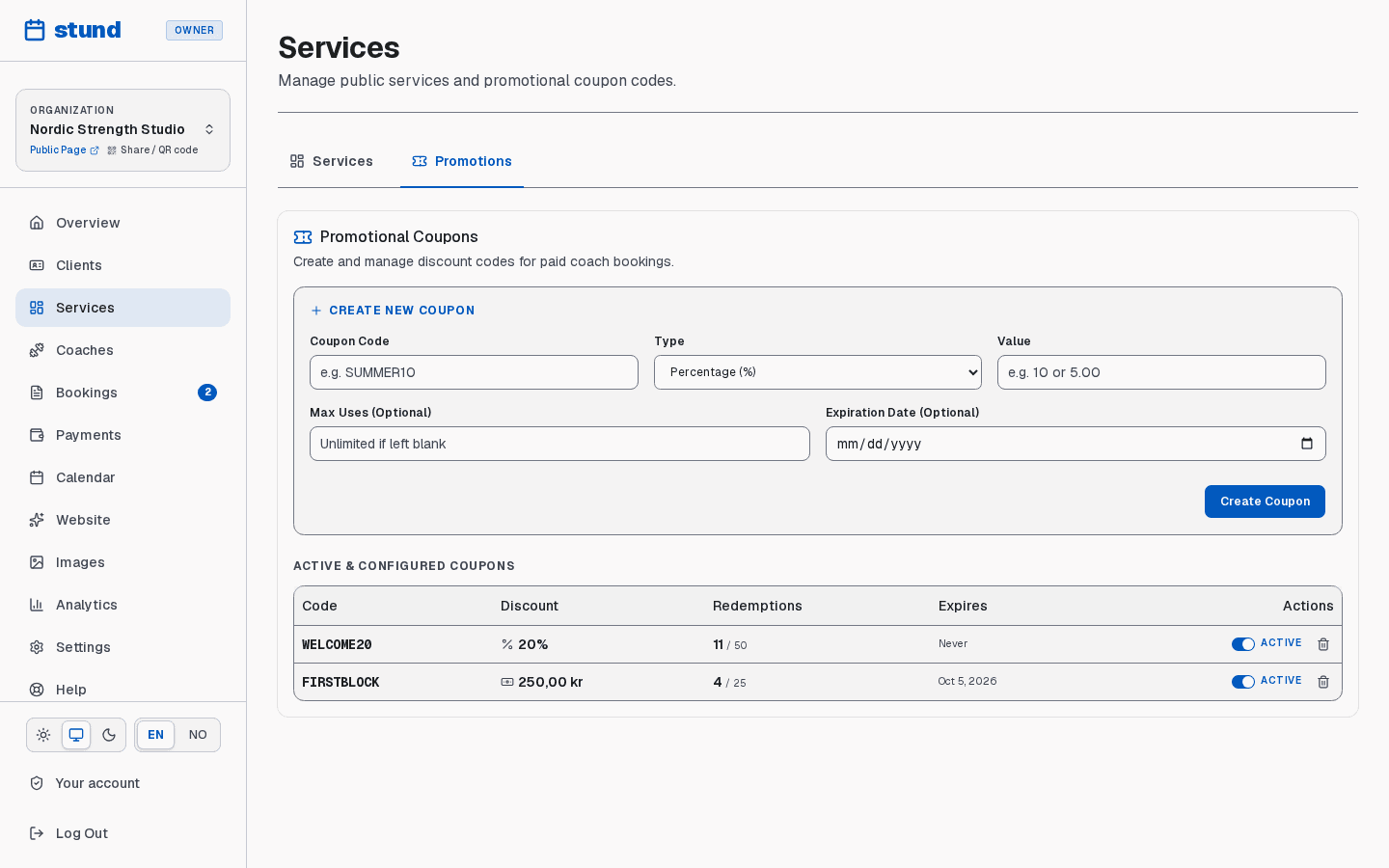
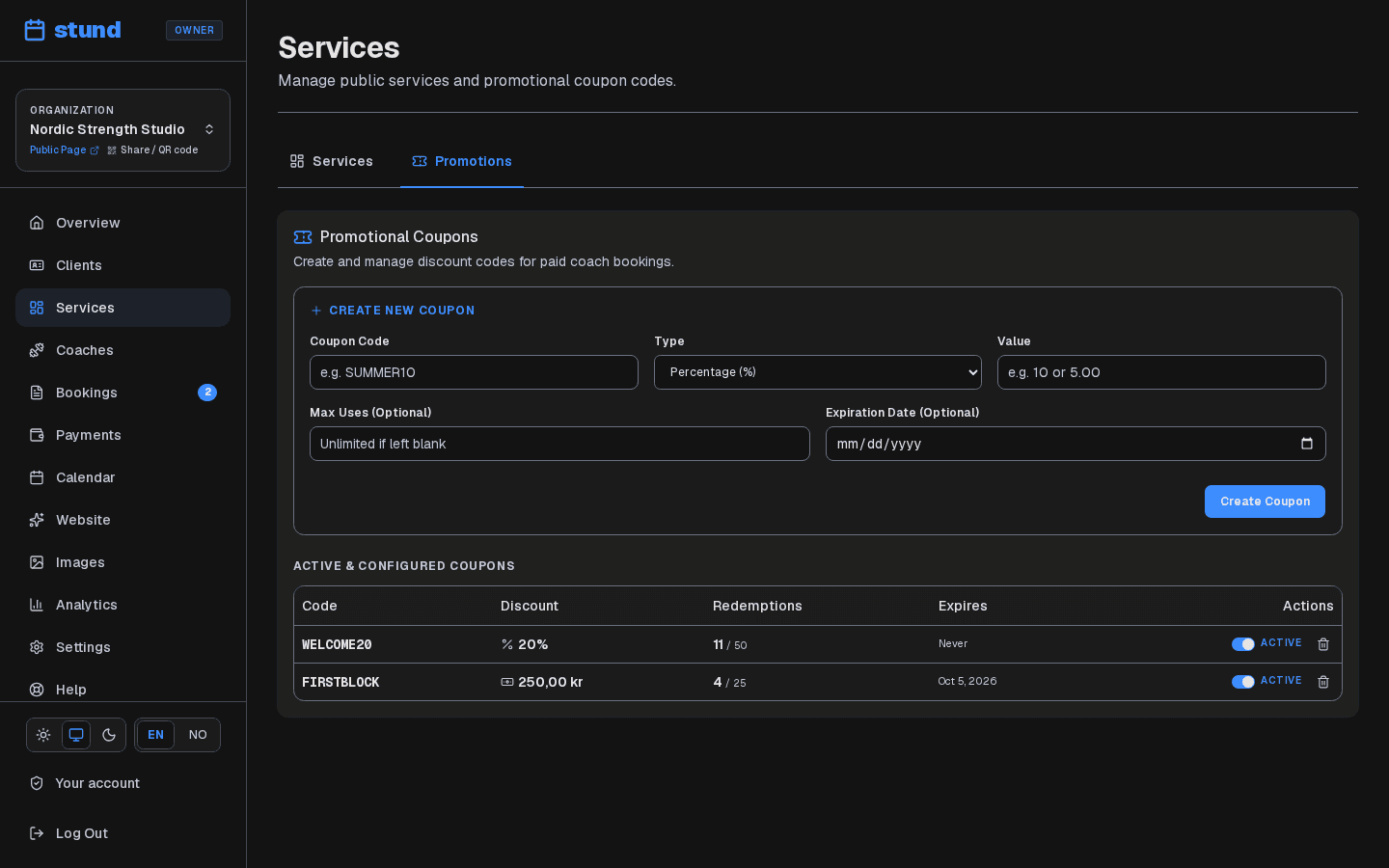
You can activate or deactivate a coupon anytime — deactivated coupons reject new redemptions but don't affect past bookings. Clients enter the coupon code at checkout if available.
Tip
Always set a redemption limit or an expiry date on a public code. A code shared in a group chat with no limit can be used far more times than you intended.
How the final price is calculated
When a client is checking out, the final price is:
- Base price (set in the coach editor)
- Plus pricing-rule adjustments (if any match the booking date)
- Minus coupon discount (if applied)
- Equals total due
All adjustments are shown to the client during booking so they see exactly what they'll pay before confirming.
Session packages (punch cards)
If supported by your plan, you can sell packages — pre-paid session credits that clients purchase upfront and redeem against future bookings. The classic example is a 10-session pack sold at a discounted rate — clients commit to more training, and you get paid upfront.
Packages are set up on the service itself, in the service editor, and appear as a purchase option on your booking page. You can follow sales under Bookings → Package sales. When a client redeems package credits, they're deducted from the booking total.
How credits are redeemed
Clients and staff can use active package credits across all booking scenarios:
- Public booking page — verified clients can select their active package credits at checkout instead of paying online.
- Owner manual bookings — when creating a booking from the dashboard, choose the customer's available package under payment options to deduct credits directly.
- Payment links — if a booking was created awaiting payment, clients with available credits can choose to settle it with their package credits on the payment page.
Keeping clients topped up
Two emails go to the client automatically, each at most once per package, so a pack never runs out or lapses without the client hearing about it:
- Almost used up — the moment a booking leaves them with one credit or none, they get a note with a link to buy a new package. Packages of a single session are left alone.
- Expiring soon — if a package has an expiry and unused credits are left a week before it, they get a reminder with the date and their secure booking link so they can use them in time.
Both are ordinary templates under Settings → Emails → Packages, so you can reword them to match your voice or switch off the custom text to fall back to ours. Each one also shows up in the client's conversation timeline, so you can see when it went out.
How customers pay for a package
Each package has its own payment methods, set alongside its name and price in the service editor — independent of the service's own selection:
- Card — clients pay by card at checkout. Needs Mollie connected.
- Invoice (Klarna) — clients choose invoice through Klarna at checkout. Runs through Mollie, so it needs the same connection.
- Pay on arrival — clients confirm the purchase without paying online; you collect payment from them directly and mark the purchase as paid yourself under Bookings → Package sales, which activates their credits.
Tip
Vipps isn't available for packages yet — only for regular bookings. If a package needs Vipps, offer Pay on arrival instead until it lands.
If a package has no payment method selected, saving the service is blocked — pick at least one so clients always have a way to complete the purchase.
Viewing and managing prices
All pricing settings are in the coach editor:
- Base price and unit
- Pricing rules (weekends, seasons, date ranges)
- Deposit amount
- Cancellation window and refund percentage
Pricing rules and coupons are also visible across your dashboard so you can track what's active and adjust as needed.